Fixing Fedora Freezing Under Load: zram + Disk Swap + earlyoom
Fedora 44 froze completely under heavy load and only a hard power-off recovered it. Here is how I found the root cause (zram-only, no disk swap) and fixed it for good, step by step. Plus an addendum: how I fixed the SELinux alert my own fix raised two days later.
Updated:
For a while I had been fighting a problem on my Fedora laptop: under heavy load the machine would freeze completely, stop responding to any input, and force me to hold down the power button to shut it off. In this post I walk through how I diagnosed the freeze and how I fixed it for good, showing every command I used. If you are hitting the same problem, you can follow along step by step.
My System / Test Environment#
First, let me share the hardware and software I was working on, because the details of the fix can depend on it:
| Component | Value |
|---|---|
| Model | ASUS Zenbook 14 OLED (UX3405CA) |
| CPU | Intel Core Ultra 9 285H (16 cores) |
| RAM | 32 GB (LPDDR5) |
| Storage | NVMe SSD |
| OS | Fedora Linux 44 (KDE Plasma Desktop) |
| Kernel | 7.1.3-200.fc44.x86_64 |
| Session | Wayland |
| Filesystem | btrfs (LUKS encrypted) |
Note: Most of the commands work on all Fedora versions (and largely on other Linux distributions too). But because my filesystem is btrfs, I used a btrfs-specific method to create the swap file; if you are on ext4, that part is simpler.
What exactly was the problem?#
The symptom was this: when I ran several heavy applications at once (in my case an Android environment + Android Studio + a browser with many tabs + other tools in the background), the system would first slow down, then lock up completely. Even the mouse would not move. Waiting did not help; the only way out was the power button.
At first I wondered “is the hardware failing, is it overheating?” But instead of guessing, I decided to look at the system’s own logs — because Linux writes down the moment it freezes.
Step 1: Finding the root cause (reading the logs from the freeze)#
Linux records the moment it crashes or freezes in the kernel logs. I looked at the last lines of the previous session (the one where it froze) like this:
# Last 40 lines of the previous boot (-b -1)
sudo journalctl -b -1 -n 40 --no-pager
I also specifically searched for any sign of memory exhaustion (OOM = Out Of Memory):
# Was "oom-killer" triggered on the previous boot?
sudo journalctl -b -1 --no-pager | grep -iE 'out of memory|oom-kill|killed process'
The result explained everything. The logs contained these lines:
Free swap  = 148kB
Total swap = 8388604kB
systemd-oomd invoked oom-killer
So almost all of my 8 GB swap area was full (only 148 KB left) and RAM had run out too. The system had locked up while trying to find memory. The cause of the freeze was not hardware — it was memory management.
Step 2: Which swap am I using? (checking zram)#
This is where the key detail surfaced. I actually already knew that Fedora uses zram by default — but there is a difference between “knowing” and “checking and seeing it.” To be sure myself, and to show someone with the same problem how to check on their own system, I walk through every step with its command. So where is that “8 GB swap” — on disk, or in RAM? I checked with this command:
# Show active swap areas and their types
swapon --show
The output was:
NAME       TYPE      SIZE USED PRIO
/dev/zram0 partition   8G ...  100
So my swap was entirely zram. But what is zram?
What is zram? It is a kernel module that reserves a portion of RAM and creates a compressed swap area there. It is much faster than disk because it physically lives in RAM. Fedora has, since version 33 (2020), created swap in zram by default on new installations instead of on disk; in Fedora 34 the size of this area was raised to half of RAM (up to a maximum of 8 GB) — the 8 GB of zram on my system is exactly the result of this default.
You can see zram’s details with:
# zram device size, algorithm, compression ratio
zramctl
This was the root of the problem: my swap was 100% zram, meaning it lived inside RAM. There was no swap on disk at all. That means: when RAM fills up, zram (also being in RAM) fills up too, and there is nowhere left for the data to escape to. That is the point where the system crashes.
The heart of the problem was this: running without a safety net on disk. On a system that has swap on disk, when RAM fills up the overflow spills to disk; the system slows down but stays alive, it does not freeze. In my case, because swap was entirely zram — meaning there was no swap on disk at all — that safety net did not exist.
The plan#
After some research I saw that this is a well-known Fedora behavior. I built a three-layer plan for the fix:
- Add a swap file on disk — the real safety net (like Windows’ pagefile).
- Grow zram a bit — widen the fast layer (8 GB → 12 GB).
- Install earlyoom — a safeguard that automatically kills the greediest process before the system freezes completely.
The logic: when RAM fills up, use the fast zram first, when that fills up let the overflow spill to disk, and in the worst case let earlyoom step in and rescue the system.
Step 3: Adding a swap file on disk (the main fix)#
Because my filesystem is btrfs, you cannot just create a swap file any old way; btrfs requires the swap file to be CoW-disabled (NOCOW), uncompressed, and without holes. Fortunately modern btrfs tools have a command that does this automatically. I created a 16 GB swap file:
⚠️ Read this before running this step. There is something missing from the commands below: SELinux labeling. I did not notice it at the time; two days later it showed up on my screen as a SELinux alert. I am leaving the commands as they were that day, because that is genuinely what I did. But do not run them with the same gap: I explain what was missing and give the correct version of this step in Addendum: The SELinux alert that showed up two days later at the end of this post. Use the command block there and you will never hit this problem.
# 1) A separate subvolume for swap (to isolate it from snapshots)
sudo btrfs subvolume create /var/swap

# 2) 16 GB swap file — sets NOCOW/compression settings automatically
sudo btrfs filesystem mkswapfile --size 16g /var/swap/swapfile

# 3) Enable swap — priority 10 (must be LOWER than zram's 100)
sudo swapon /var/swap/swapfile --priority 10
Important rule — priority: On Linux, higher priority is used first. zram’s priority is 100. I deliberately gave the disk swap 10 so that disk is not used before zram fills up. That is: RAM first for speed, disk afterward for safety.
To make it permanent (come up automatically on every boot), I added it to /etc/fstab:
# Add a permanent line to fstab
echo '/var/swap/swapfile none swap defaults,pri=10 0 0' | sudo tee -a /etc/fstab
I checked:
swapon --showNAME TYPE SIZE USED PRIO
/dev/zram0 partition 8G ... 100
/var/swap/swapfile file 16G 0B 10Now total swap had gone from 8 GB up to 24 GB, and most importantly, there was a disk safety net for RAM to fall back on.
If you are on ext4#
If your disk is not btrfs, the process is simpler:
sudo fallocate -l 16G /swapfile
sudo chmod 600 /swapfile
sudo mkswap /swapfile
sudo swapon /swapfile --priority 10
echo '/swapfile none swap defaults,pri=10 0 0' | sudo tee -a /etc/fstabStep 4: Raising the zram ceiling (8 GB → 12 GB)#
Fedora’s default zram setting is min(ram, 8192), so even though I have 32 GB of RAM it was capping zram at 8 GB. To widen the fast layer a bit, I set it to 12 GB:
# Create/update the zram-generator config file
sudo tee /etc/systemd/zram-generator.conf <<'EOF'
[zram0]
zram-size = min(ram, 12288)
EOFI also added this to guarantee the zram module loads at boot:
echo zram | sudo tee /etc/modules-load.d/zram.confHere I made a mistake (an honest note)#
I wanted to apply this setting immediately, without restarting the computer:
sudo systemctl restart systemd-zram-setup@zram0.serviceBut the command failed. After some digging I understood why: zram-generator is not designed to be reconfigured on the fly while the system is running — it is designed to kick in only when the computer boots. The clean way to apply a size change is either to manually unload and reload the zram module, or to restart the computer. I chose the cleanest option: I wrote the settings and left the restart for last. In short, not every command worked on the first try; I learned the right way while trying.
Step 5: A last line of defense with earlyoom#
Disk swap solves the freeze, but I wanted one more layer of assurance. earlyoom is a small service that automatically kills the greediest process before memory reaches a critical level:
# Install earlyoom and start it automatically at boot
sudo dnf install -y earlyoom
sudo systemctl enable --now earlyoomIt comes with sensible defaults from Fedora, and the nice part is: it never kills critical system processes (the desktop, systemd, cryptsetup, etc.), targeting first the large, expendable processes like browser tabs.
Step 6: Verifying after the change (the most critical stage)#
Making the settings is not enough; you have to be sure they actually took effect. First I restarted the system, because the real question was: “Will these settings come up automatically at boot?”
After restarting I checked with a single command:
swapon --showNAME TYPE SIZE USED PRIO
/dev/zram0 partition 12G 0B 100
/var/swap/swapfile file 16G 0B 10There is the proof: zram came up automatically at 12 GB and the disk swap was active too. Total 27 GB of swap. I also verified the protective services:
systemctl is-active earlyoom systemd-oomd
free -hAuditing that the setup is correct#
Being a bit paranoid, I also checked that the btrfs swap file really follows the rules. The most important one is the NOCOW flag:
# We need to see the 'C' letter (required for btrfs swap)
sudo lsattr /var/swap/swapfile---------------C------ /var/swap/swapfileThe C flag was there, so NOCOW was set correctly. Actually the strongest proof is this: the btrfs kernel is very strict — it refuses to open a file as swap if it is CoW-enabled, compressed, or has holes. Since the file shows as active in the swapon --show output, the kernel has already put it through all of those checks.
Result: No more freezing#
After this three-layer setup, instead of freezing and forcing me to hit the power button, the system now slows down briefly under heavy load and then recovers. In summary, what I did:
- Added 16 GB disk swap → an overflow destination when RAM fills up (the main fix).
- Raised zram to 12 GB → a wider fast layer.
- Installed earlyoom → a last-resort emergency brake.
- Total swap went from 8 GB → 27 GB, all persistent.
Quick check commands (summary)#
If you are hitting the same problem, first look at your situation:
swapon --show # Is swap on disk, or in zram?
zramctl # zram details
free -h # RAM and swap usage
sudo journalctl -b -1 | grep -i oom-kill # Was there OOM at the moment of the freeze?If your swap is entirely zram and there is no swap on disk at all, you are most likely facing the same problem I had. The steps above should do the job.
Addendum: The SELinux alert that showed up two days later (and the labeling story)#
Two days after publishing this post, this alert window came up on screen when I turned the computer on:
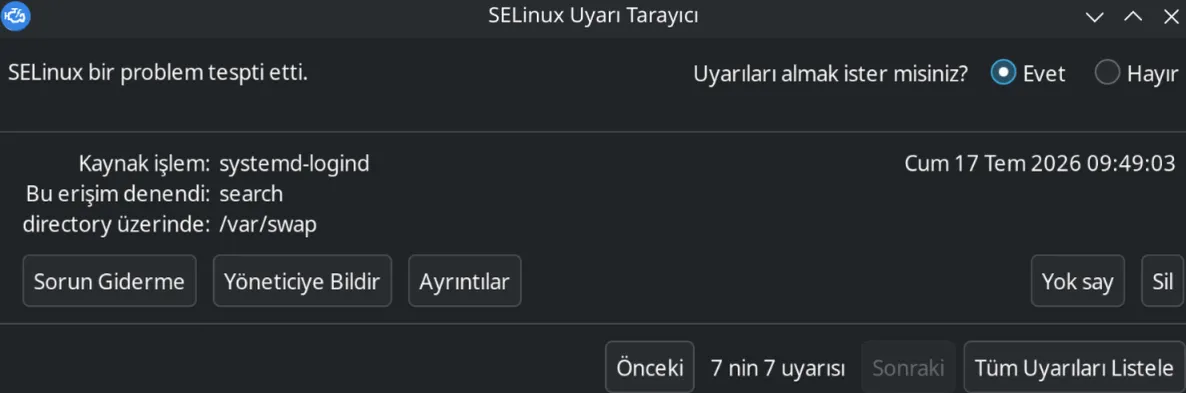
My desktop is in Turkish, so here is what that window says:
SELinux has detected a problem. Source process:
systemd-logindAttempted this access:searchOn directory:/var/swap
So the swap directory I had created myself had tripped over SELinux. I will admit my first thought was “oh no, did I break the swap?” But instead of panicking I followed the same path as before: evidence first, decision second.
First: Was the swap actually broken?#
That was the most critical question, so I asked it first:
swapon --show
free -hNAME TYPE SIZE USED PRIO
/var/swap/swapfile file 16G 0B 10
/dev/zram0 partition 12G 0B 100
---
Swap: 27Gi 0B 27GiThat was a relief. Swap was working, all 27 GB of it was up. So the alert was not something that had broken the system. That gave me room to look into it with a clear head.
Next: What exactly is the alert saying?#
SELinux’s logic is this: it sticks a label on every file, then applies rules about “which program may touch which labeled file.” I looked at the labels:
ls -Zd /var/swap
ls -Z /var/swap/swapfile? /var/swap
unconfined_u:object_r:unlabeled_t:s0 /var/swap/swapfileThere is the reason. unlabeled_t = “no label”. The directory had so little of a label that even ls printed a ?.
The audit records said the same thing:
sudo ausearch -m AVC -ts todayavc: denied { search } for pid=2596 comm="systemd-logind" name="swap"
scontext=system_u:system_r:systemd_logind_t:s0
tcontext=system_u:object_r:unlabeled_t:s0 tclass=dir permissive=0The sentence is easy to read: systemd-logind (the source) wanted to search a directory labeled unlabeled_t (the target), and was denied.
But why was it left unlabeled?#
I was the culprit — or more precisely, this command I ran back in Step 3:
sudo btrfs subvolume create /var/swapI had created a separate subvolume for the btrfs swap file (to isolate it from snapshots, which was the right call). But a subvolume you create by hand comes up without a SELinux label. When SELinux sees something unlabeled it does not know what to do, so it stays on the safe side: it blocks the access.
So nothing in the system was broken; the directory simply had no entry on the SELinux side, that was all.
Why I decided it was harmless#
For three reasons:
- What was blocked was a useless access.
systemd-logindhas no business in the/var/swapdirectory anyway; nothing is lost by blocking it from looking there. - The swap itself was not being blocked. The kernel kept reading and writing the swap file —
swapon --showwas the proof. - The alert had repeated 24 times, but all of them belonged to the same boot; it was not a growing problem.
So nothing in the system was failing; SELinux was blocking an access whose outcome affected nothing, and telling me about it. But it was a warning that popped a window into the middle of my screen on every boot. Rather than ignore it, I decided to remove the cause.
The fix: Sticking the labels on#
Two commands were enough:
# 1) A permanent rule: "this file is a swap file"
sudo semanage fcontext -a -t swapfile_t '/var/swap/swapfile'
# 2) Apply the rule (var_t on the directory, swapfile_t on the file)
sudo restorecon -Rv /var/swapThe output was exactly what I wanted:
Relabeled /var/swap from system_u:object_r:unlabeled_t:s0 to system_u:object_r:var_t:s0
Relabeled /var/swap/swapfile from unconfined_u:object_r:unlabeled_t:s0 to unconfined_u:object_r:swapfile_t:s0Why
semanageand notchcon? For problems like this the internet often suggestschcon -t ... file, and it does work — but only temporarily.chconsticks the label onto that one file at that moment; it writes nothing to the policy database. If the system ever does a full relabel (restorecon -R /or/.autorelabel), whateverchcondid evaporates and the problem comes back.semanage fcontext, on the other hand, writes the rule into the policy;restoreconthen reads that rule and applies it. Sosemanage+restoreconis permanent,chconis a band-aid. To avoid making the same mistake twice, I went with the right one.
Verifying (again, the most critical stage)#
Making a change is not enough; you have to see that it actually took effect — I had gone about the swap setup the same way. And this time I had changed the label of a file the system was using right then. If any harm had come to the swap, I needed to find out now, not later.
# 1) Did the labels take?
ls -Zd /var/swap ; ls -Z /var/swap/swapfile
# 2) Is swap still up? (this is the real question)
swapon --show
# 3) Was the rule saved permanently?
sudo semanage fcontext -l -C | grep swap
# 4) Will it come up again at boot?
grep -i swap /etc/fstab
# 5) Are new denials happening?
sudo ausearch -m AVC -ts recent | grep -c deniedThe results, in order:
system_u:object_r:var_t:s0 /var/swap
unconfined_u:object_r:swapfile_t:s0 /var/swap/swapfile
NAME TYPE SIZE USED PRIO
/var/swap/swapfile file 16G 0B 10
/dev/zram0 partition 12G 0B 100
/var/swap/swapfile all files system_u:object_r:swapfile_t:s0
/var/swap/swapfile none swap defaults,pri=10 0 0
0All five clean: the labels are in place, nothing happened to the swap, the rule is written into the policy, the fstab entry is still there, and new denials are zero. The gap that caused the alert is closed, and that window has not come back.
A warning: old records stay in the list#
One small detail threw me off for a moment: even after fixing the problem, the old alerts were still sitting in the SETroubleshoot list. Do not panic — those are an archive of the past, not a live problem. To see the list:
sudo sealert -l '*'If you want to wipe the history completely:
sudo rm /var/lib/setroubleshoot/setroubleshoot_database.xml
sudo systemctl restart setroubleshootdThis only deletes the alert history; it does not touch the SELinux policy or the audit records (/var/log/audit/). If a real problem comes up, a new alert will show up again.
What to do when you get a SELinux alert#
The real conclusion I drew from this: “SELinux raised an alert” and “the system is broken” are not the same thing. When people see alerts like this, the first reflex is often to disable SELinux entirely (SELINUX=disabled). That is like tearing the fire alarm off the wall because it went off: the warning stops, but so does the thing protecting you. And in my case the real problem took two commands to fix — turning off the protection would have made a solvable problem permanent.
The right way is to go in this order:
- Is there damage? Measure that first (check the actual function, like
swapon --show). - What is the alert saying? Read the source, the target, the action (
ausearch,sealert). - What is the root cause? In my case: the subvolume I created by hand never got a SELinux label.
- Fix it from the right place. Write a permanent rule into the policy; do not shut off the whole protection just to get rid of an alert.
- Verify. Both that the problem is gone and that you broke nothing.
One more note: if you create btrfs subvolumes by hand, make running restorecon afterwards a habit. You can see why with two commands:
mkdir /tmp/test # ls -Zd -> gets a label on its own
btrfs subvolume create /tmp/test2 # ls -Zd -> '?', i.e. NO LABELThat is the whole difference. Had I created a plain directory, it would have inherited its label from the parent (/var → var_t) and I would never have seen this alert. The problem is specific to btrfs subvolume create.
The correct version of Step 3: how I would do it from scratch#
I left the commands in Step 3 as they are, because that is genuinely what I did. But now that you have read this section, you know what was missing. If I were setting up swap from scratch today, I would write that step like this:
# 1) A separate subvolume for swap
sudo btrfs subvolume create /var/swap
# 2) SELinux label rule — must be written BEFORE the swap file exists, so that
# the restorecon below has a rule to apply
sudo semanage fcontext -a -t swapfile_t '/var/swap/swapfile'
# 3) 16 GB swap file — sets NOCOW/compression settings automatically
sudo btrfs filesystem mkswapfile --size 16g /var/swap/swapfile
# 4) Apply the labels (var_t on the directory, swapfile_t on the file)
sudo restorecon -Rv /var/swap
# 5) Enable swap — priority 10 (must be LOWER than zram's 100)
sudo swapon /var/swap/swapfile --priority 10
# 6) The fstab line, to make it permanent
echo '/var/swap/swapfile none swap defaults,pri=10 0 0' | sudo tee -a /etc/fstabThe only additions are lines 2 and 4. Their order matters: restorecon applies the rule written in the policy — if there is no rule, there is nothing for it to apply. With these two lines the directory gets var_t and the file gets swapfile_t from the start; no SELinux alert appears, and you never need to read this section two days later.
Then check your work with two commands:
swapon --show # did the swap actually come up?
ls -Zd /var/swap ; ls -Z /var/swap/swapfile # did the labels land?What you should see:
NAME               TYPE      SIZE USED PRIO
/dev/zram0         partition   8G ...  100
/var/swap/swapfile file       16G  0B   10
system_u:object_r:var_t:s0 /var/swap
unconfined_u:object_r:swapfile_t:s0 /var/swap/swapfileIf the swap shows up in the list and the labels are var_t / swapfile_t, the step is done: total swap has gone from 8 GB to 24 GB, there is now a safety net on disk, and the alert I ran into two days later will never appear on your machine.
From here you can pick the post back up where you left off — Step 4: Raising the zram ceiling. (Growing zram to 12 GB and taking the total to 27 GB happens there.)
This post describes a real problem I ran into and the solution I applied. The commands here worked on my system, but every system is different. Before applying them, back up your important data and adapt the commands to your own system (especially if your filesystem is different).
Important: Everything you do is entirely your own responsibility. I am not responsible for any data loss, system failure, or other damage that may occur while applying these steps. If you are not sure what a command does, research it before running it and make sure you have a current backup.
Comments
Comments use your GitHub account. Clicking “Show” loads Giscus (giscus.app).